read the repo
The files, beside the work.
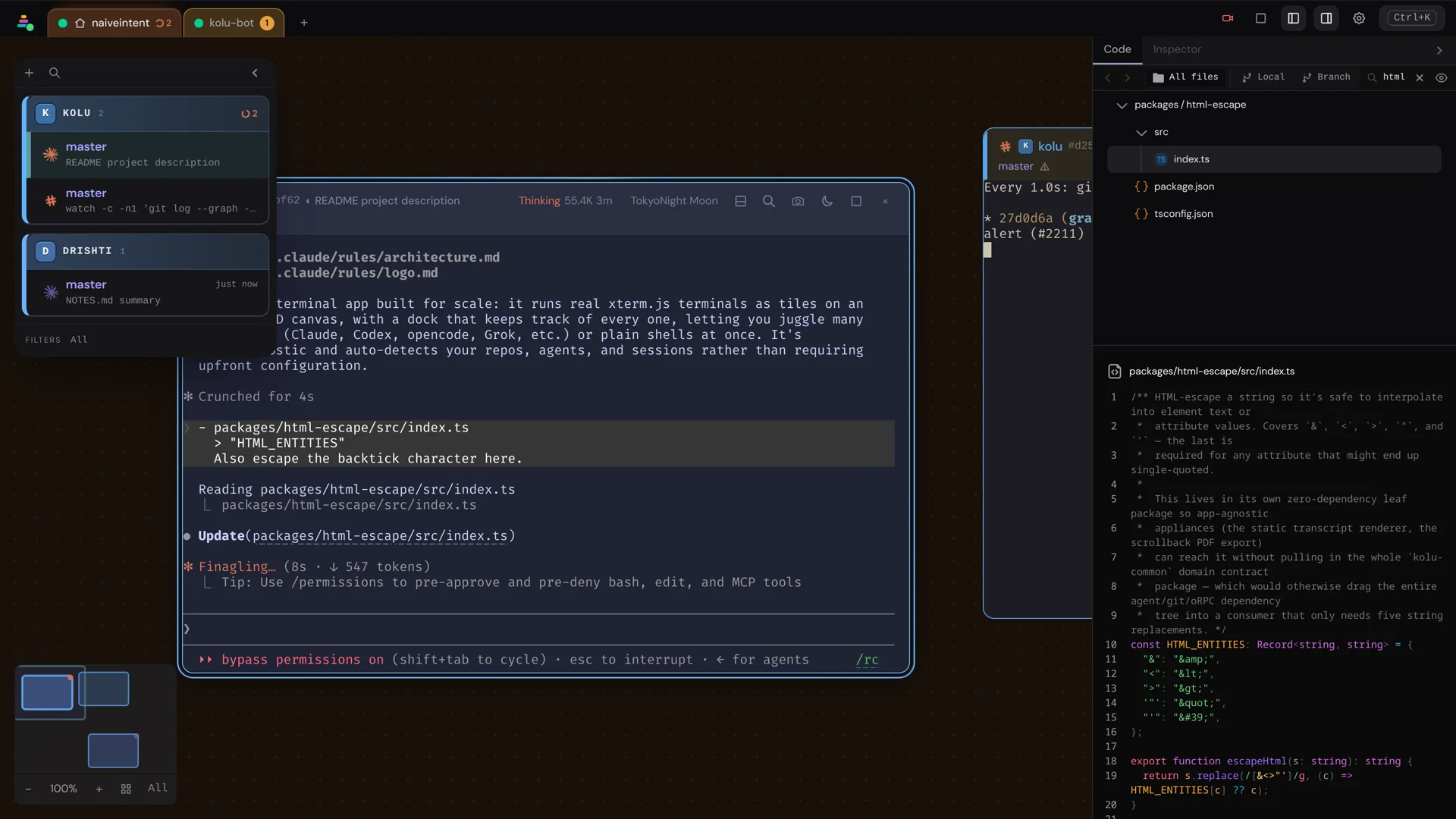
The Code tab lives in the right panel and is a file browser scoped to the focused pane’s repo — a Pierre file tree with git-status tinting over a syntax-highlighted source view. Focus a split running in another repo and the tree follows it; focus back to the tile’s main terminal and its own tree and selected file return. The panel’s header line names the directory the pane — and so the tree — is rooted at, with the repo root emphasized. It is how you read what an agent is working on without leaving the terminal beside it.
Browse and jump
- Click a
path/to/file.ts:42reference in terminal output to open that file at that line; a folder path (packages/client/) is clickable too and reveals the directory in the tree. - Rhai scripts (
.rhai) are recognized and syntax-highlighted in both source and diff views. - Big files and diffs highlight on a background worker, so opening a 50k-line lockfile paints immediately and never freezes scrolling.
- Right-click a file in the tree to Copy path or Download it — the save lands under the file’s own name, whatever its type, on your machine or a remote host. Folders offer no Download, and neither do files git reports as deleted.
Your git changes — live
A segmented control switches between three views: All files (the whole repo), Local (uncommitted), and Branch (vs the base). The Local and Branch segments carry a change-count badge, so you can see you have, say, 3 uncommitted files and 12 changes versus your branch base without switching into either.
When a directory was replaced by a file of the same name (say, a folder swapped for a symlink), or the other way round, that path shows as one row. Its diff covers the file at that path and every file under it. The badge still counts git’s changed files, so it can read higher than the rows in the tree. A file renamed out of the replaced directory shows inside that row’s diff as a plain deletion, because a diff of one path cannot pair the rename. A line reference copied from that diff names the file the line is in. Comments attach only to the path’s own file: select text in a file under it and the comment pill says so.
Each view keeps its own file tree mounted, preserving expanded folders and scroll position when you switch away and back. Typing in the filter box narrows the tree to the files that match and opens their folders; a folder you close while filtering stays closed as git changes come in, until the set of matching files changes — a new match opens its folder again, while editing the filter to one that matches the same files does not. During loading or an error, the previous tree stays visible but dimmed and cannot be clicked. Saving the open file updates its contents in place, preserving the viewer and its scroll position.
All files shows what git tracks plus anything untracked, and leaves out what
your .gitignore hides — so the tree is your project, not your node_modules.
When you do want to see the hidden ones, the eye toggle beside the filter box
brings them back as dimmed rows, and a fully-ignored directory arrives as a
single collapsed entry — node_modules/ is one row, not forty thousand files.
Expand that row and kolu reads the one level beneath it from disk, so you can
walk down into node_modules/solid-js/ a click at a time. Each directory you
open costs one directory read; the ones you never open cost nothing. An ignored
file listed in its own right opens and renders like any other. The toggle
remembers itself per browser, and appears only in All files, since the diff
views list changed files where an ignored path can’t turn up.
One caveat worth knowing: nothing about an ignored file updates live. kolu
deliberately doesn’t watch inside ignored directories — recursively watching
node_modules is what exhausts a machine’s file-watch budget — so neither the
dimmed rows nor the contents of an ignored file you have open will repaint when
they change on disk. Collapse a directory and open it again to re-read what is
inside it, and reselect a file to re-read its contents.
The changed-file list and its diffs repaint live the instant a file changes
on disk — a payload-free repo-change pulse re-running git status, with no
polling. Updates pause while the panel is hidden or the Inspector is selected;
reopening Code refreshes its retained contents. The same loop works when pointed at
another machine, so your status and diffs stay live over the
ssh hop too.

Markdown and artifacts
- Markdown (
.md,.markdown, and.mdx) renders as a reading document with a Source/Rendered toggle that keeps both views alive (flipping is instant and holds your scroll position). A---YAML front-matter block renders as a table; a footnote marker opens its definition in a popover where your eye already is. MDX is previewed as Markdown — component tags are not executed and are stripped by the sanitizer (use Source for the raw MDX). - Agent-generated
.htmland.svgartifacts preview inline in a sandboxed iframe;.pdfopens in the browser’s native viewer; images and video render as themselves. Everything live-reloads on change, and an external link in an HTML preview opens in a new tab.
File comments
Select text in source, a branch diff, or a rendered artifact and pin a quoted note to it. The comment tray flushes to Markdown you paste straight back into the agent — a way to review a change and hand the agent your notes in its own words.