
the terminal
A real terminal, not a preview.
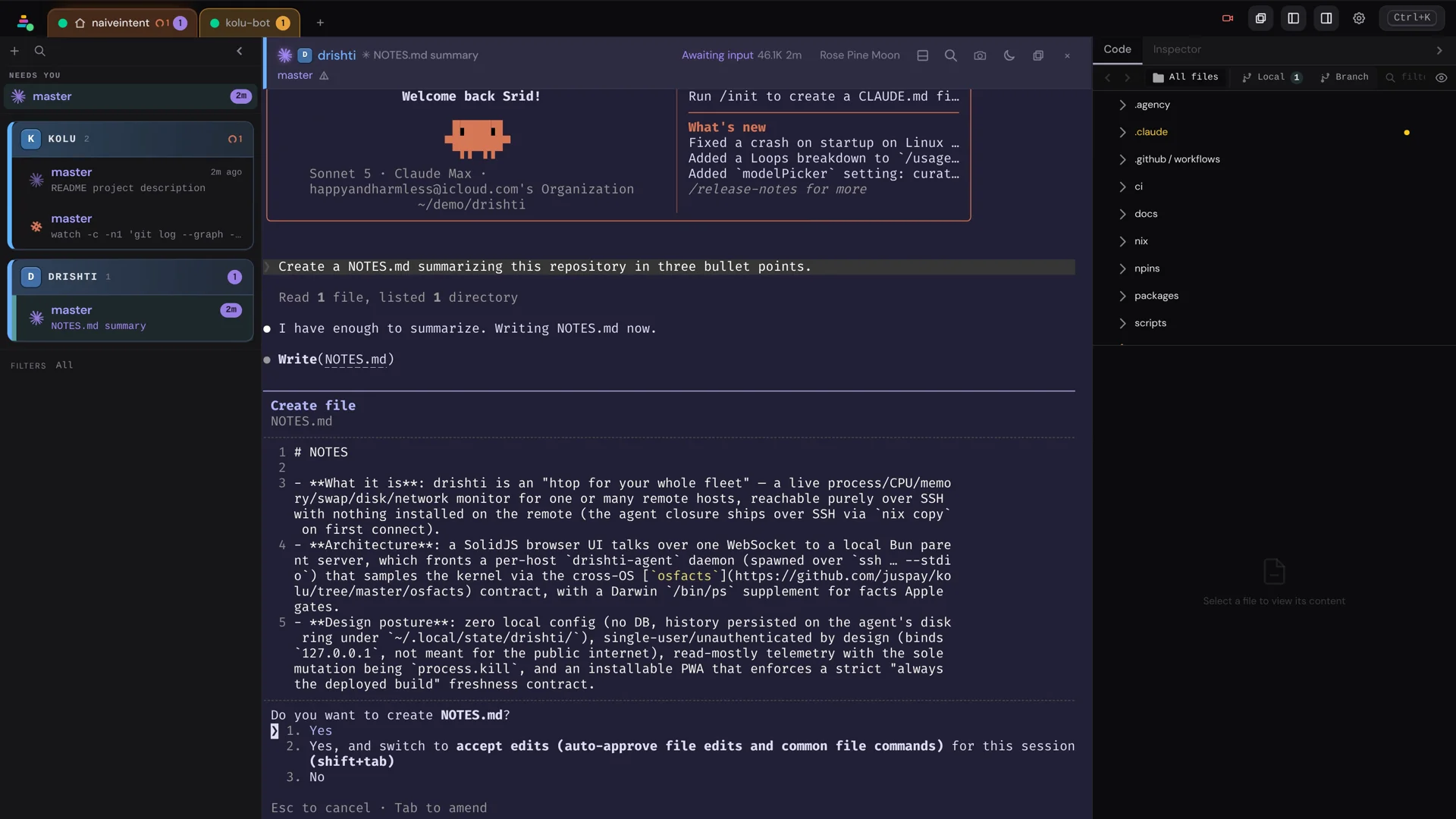
A tile is a full terminal, not a preview — a real xterm.js instance with everything you’d expect from a native one. The title bar carries the same repo monogram and a short colour spine as the dock, so identity agrees everywhere you look.
Splits and tabs
Split a bottom pane with Ctrl + </kbd>, add tabs with <kbd>Ctrl</kbd> + <kbd>Shift</kbd> + <kbd>. On the canvas, every
descendant of a tile — a direct split, or a split of a split created from the
shell or by an agent (kolu create --parent <id>) — shows as a flat
tab in that tile’s bottom strip. Nested depth is allowed in the data; the
canvas just does not invent a second visual language for it. In the Dock, the
same terminals keep their true tree: every split sits directly beneath its real
parent as the same row a top-level terminal gets — indicator, annotation,
status words, model, timestamp — opened by a └ and stepped in one notch per
hop, so the tree is visible without a second layout to learn. An
externally-created split opens the same way — the pane expands
and the new split is selected, no click needed (unless you’re already working
in another split of that tile, which it won’t yank you off).
In a split, the pane that does not have focus recedes slightly, so the one your keystrokes are going to always reads as the foreground.
Splits move too: in the Dock, drag a row’s grip onto another row to make it a split of that one, or onto its repo card’s header to give it back its own tile.
Font zoom
Zoom the font with Cmd/Ctrl + + / - — it zooms only the focused tile and persists per terminal, so two tiles can be aligned to the same size.
Rendering
- WebGL rendering with a canvas fallback, kept on your whole working set of terminals at once so switching between them never churns GPU contexts.
- Clickable URLs — a long URL that wraps across lines survives resizes and always opens whole.
- Unicode 11 and inline images (sixel, iTerm2, kitty).
Output keeps flowing
The terminal defends itself against the ways live output can silently stall: a heartbeat detects a dead connection (a sleeping laptop, a Wi-Fi roam) and reconnects on its own; reconnecting re-asks for everything the old connection was carrying, so a pane cannot be left waiting on an answer that can no longer come; a repaint queued while the window was in the background runs the instant you return; and when a flooding terminal outruns its view, it re-attaches and repaints from a fresh snapshot rather than freezing. You should never need a keypress or a reload to see output that already happened. And a pane whose feed keeps coming back empty — reopened, but never delivering anything — says so rather than sitting there blank: a message names the pane and tells you kolu is still retrying, and it keeps retrying at a gentle cadence until output reaches the pane again.
A terminal’s screen is drawn for one specific width and height, so a pane waits until it has actually been measured before it asks for anything, and asks for the screen at its own size. That matters most for a split you open later — a collapsed panel, or a tab that was in the background when the page loaded. It has no size on screen to measure yet, so rather than guess one and paint a screen drawn for the wrong width, it stays empty until you reveal it and then paints once, correctly. You should never have to nudge the divider to fix a split’s rendering.
A tip under the title bar
In a terminal with coding agents, a tile sometimes shows a coloured bar between its title bar and the terminal, suggesting what to do next in that terminal. It reads as a short sentence with buttons in it, and, at the right end, where the suggestion comes from.
| When | The tip | The buttons |
|---|---|---|
| You are at a shell inside a repository | Launch an agent: one button for each agent in the terminal’s set, in the set’s order (for example claude codex opencode pi omp) | Click the one you want: it types that agent’s name and presses Enter, starting it. If they do not all fit, the last button is +N, which opens a menu of the rest |
| You launch one of your agents and it waits for your first message | Try a skill: one of kolu’s own, with a line on what it does | Puts /kolu into the agent’s input and leaves the cursor after it, so you finish the message and send it yourself |
Only the buttons do anything; the rest of the bar is not clickable, and clicking it does not select or move the tile.
Folding the tip to a tab
If you would rather keep the terminal’s full height, click the small arrow at the right end of the bar. The bar folds into a tab hanging from the bottom right of the title bar, over the top of the terminal, showing only the first words (“Launch an agent”, “Try a skill”). Hover it to read the whole tip; click it to open the bar again. You can also run Toggle tip bar from the command palette.
The choice is one setting for every tile, and kolu remembers it. It only changes the tip’s size: the tab comes and goes exactly when the bar would.
The tip follows what the terminal is doing: the bar slides open while it applies, and folds away when it no longer does — you start an agent, send it that first message, or leave it. Nothing is used up: back at the shell in a repository, the first tip is there again. While the bar is open the terminal below is one bar shorter, so it has a couple fewer rows; they come back when the bar folds away, or when you fold it to its tab.
A tip shows only on the active tile, on the desktop layout, on a running
terminal (a sleeping tile has none). The skill tip appears as soon as the agent
you launched is running — kolu knows it by its command name, before the agent
has answered anything. The launch tip needs the shell itself in front, so
running ls, ssh or vim clears it until the prompt is back. With reduced
motion turned on in your system, the bar and the tab appear and go without
sliding.
On touch devices
A mobile key bar sends the keys soft keyboards lack — Esc, Tab, arrows, Ctrl+C — with two sticky modifiers you tap to arm. The full story is in kolu on a Phone.